
Once you understand the dashboard, the next core part of Kitra is Event Types.
This is where bookings actually begin.
Event Types define what people can book, how long the meeting lasts, how it looks, and how it behaves. Each event type becomes a public booking page you can share with others.
Think of Event Types as reusable meeting templates.
The Event Types Page
When you open Bookings → Event Types, you’ll see all your existing event types in one place.
Each event card gives you a quick overview:
The meeting platform (Google Meet, Zoom, in-person)
The duration (for example, 15 or 30 minutes)
The event name and category
Whether the event is active
How many bookings it has received
From here, you can:
Create new event types
Edit existing ones
Share booking links
Quickly access settings
This page acts as your booking control center.
Creating a New Event Type
To create a new event type, click Create new event type.
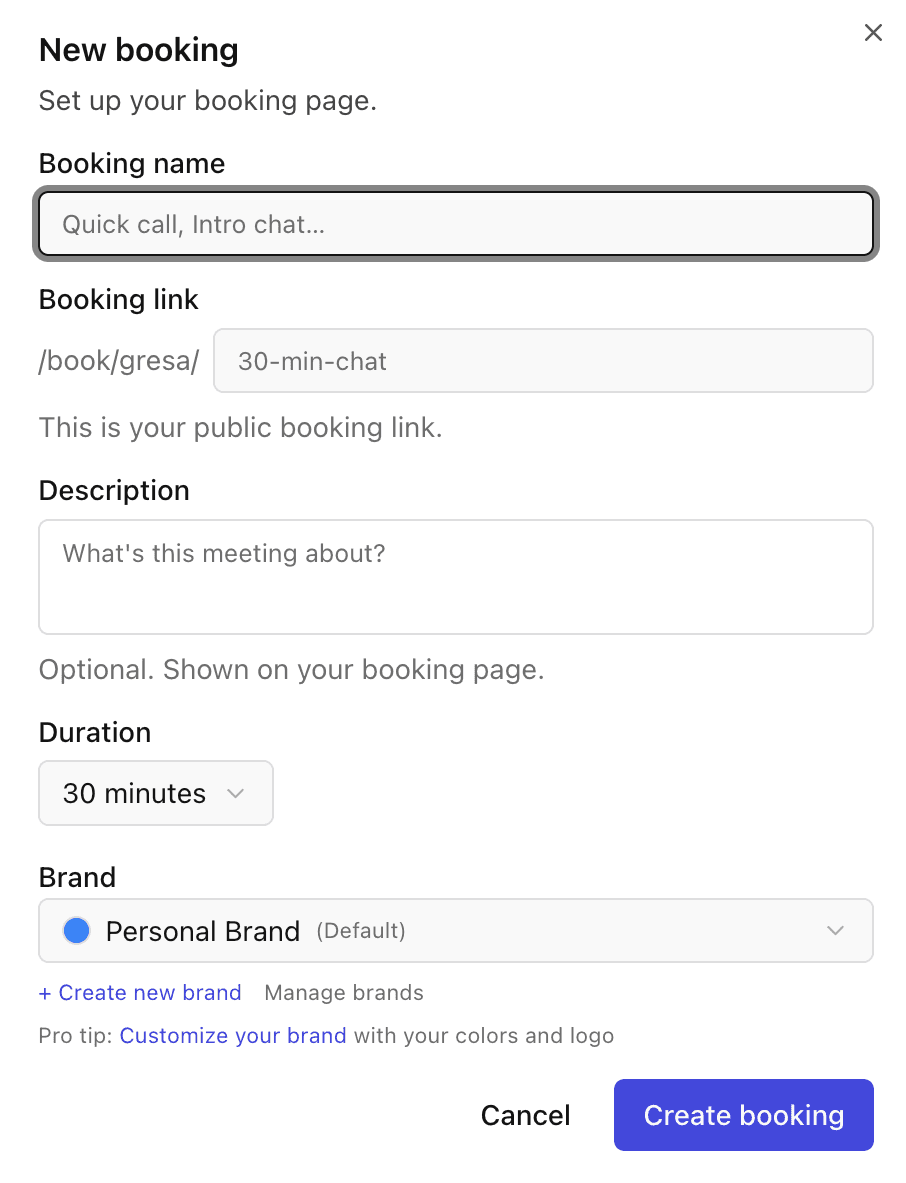
This opens the booking setup modal, where you define exactly how this event works.
Booking Name
The Booking Name is the title people will see when they open your booking page.
Examples:
“Quick Call”
“Intro Chat”
“Strategy Session”
“Product Demo”
This should clearly describe the purpose of the meeting so people know what they’re booking.
Booking Link
Every event type gets a unique public booking link.
You’ll see a structure like:
/book/yourname/30-min-chat
This link is:
Shareable
Public
Automatically generated
Editable to match your event
This is the link you can send via email, add to your website, or share on social media.
Description (Optional)
The Description appears on the booking page and helps set expectations.
This is optional, but recommended.
You can use it to explain:
What the meeting is about
What will be discussed
Who the meeting is for
Clear descriptions reduce confusion and improve the quality of meetings.
Duration
The Duration defines how long the meeting will last.
Available options include:
15 minutes
30 minutes
45 minutes
1 hour
1.5 hours
2 hours
This directly controls:
The time blocked on your calendar
What attendees see when booking
How much time Kitra allocates for the meeting
Choosing the right duration helps avoid rushed or overly long meetings.
Saving the Event Type
Once everything is set:
Click Create booking
Your event type becomes active immediately
The booking link is ready to share
You’ll now see the event card on the Event Types page with:
Active status
Booking count
Quick access to settings and sharing options
Managing Existing Event Types
For each event type, you can:
Open Settings to edit details
Share the booking link
Open the booking page in a new tab
Enable or disable the event at any time
This makes it easy to adjust your availability and offerings without rebuilding anything.
Why Event Types Matter
Event Types are the foundation of how people interact with you through Kitra.In the next section we will talk about Brands.