

Event Type Settings
Event type settings allow you to fully customize how a specific booking works in Kitra.
You can access these settings by going to:
Bookings → Event Types → Open an Event
Inside an event type, you’ll see four main tabs:
Details
Availability
Questions
Limits
Each section controls a different part of your booking experience.
Details
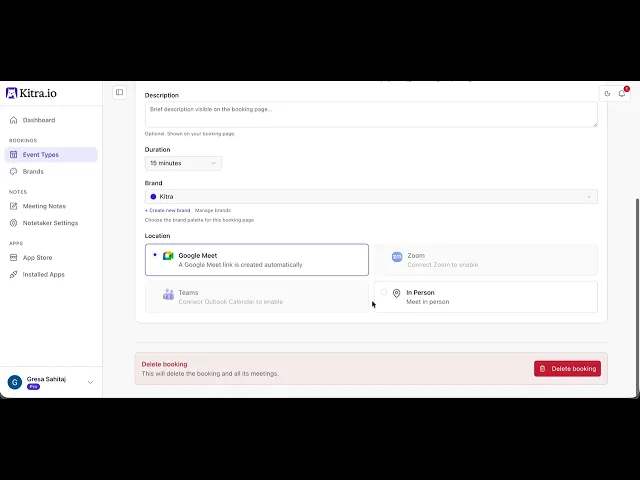
The Details tab controls the basic information for the booking.
Here you can edit:
Booking Name
The title people see when they book a meeting.
Booking Link
Your public scheduling URL that you can share with others.
Description
A short explanation of what the meeting is about.
Duration
The length of the meeting (for example 15 or 30 minutes).
Brand
Controls the branding and appearance of the booking page.
Location
Choose how the meeting happens, such as:
Google Meet
Zoom
Microsoft Teams
In-person meeting
Availability
The Availability tab controls when people can book you.
You can define:
Booking Window
How far in advance meetings can be scheduled.
Weekly Hours
Set your working hours for each day of the week.
You can also:
Enable or disable specific days
Add multiple time slots
Copy hours to other days
Blocked Dates
You can block specific dates when you are unavailable.
Questions
By default, Kitra collects name and email when someone books a meeting.
You can also add custom questions, such as:
What the meeting is about
Any preparation needed before the meeting
This helps you gather useful information before the meeting starts.
Limits
The Limits tab allows you to control how meetings are scheduled.
You can set:
Buffer Time
Add time before or after meetings.
Advance Notice
Define how much notice is required before someone can book.
Daily Limits
Set the maximum number of meetings per day.
Event type settings give you full control over how people book time with you, making scheduling simple and flexible.
In the next guide, we’ll explore Brands in Kitra.