
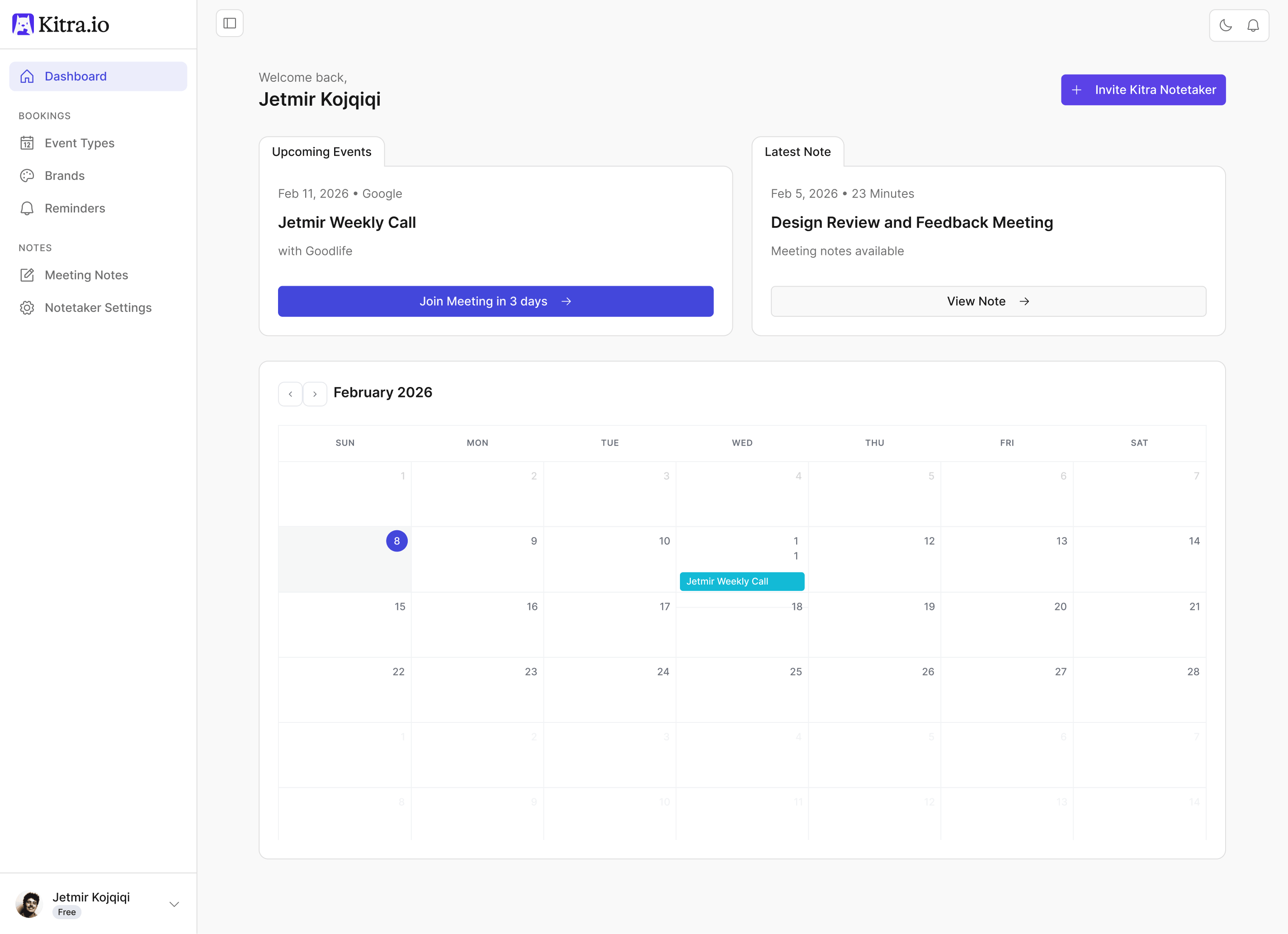

What Google Calendar Does
Google Calendar syncs your availability with Kitra in real time. It ensures your booking schedule reflects your actual availability.
Why You Should Connect It
Without a connected calendar:
Kitra cannot detect busy times
Double bookings may occur
Events won’t automatically appear in your calendar
With Google Calendar connected:
Busy time blocks sync automatically
New bookings create calendar events instantly
Availability updates in real time
How to Connect Google Calendar
Go to Apps → App Store
Click Google Calendar
Click Install
Sign in to your Google account
Approve permissions
Once authorized:
Kitra begins syncing immediately
Your events are checked for conflicts
Bookings automatically create calendar entries
What Happens After Connecting
After installation:
New bookings appear instantly in Google Calendar
Your busy times block availability in Kitra
Double bookings are prevented
If connected through Notetaker Settings:
Meetings can also be auto-detected for notes
How to Disconnect Google Calendar
Go to Apps → Installed Apps
Click Google Calendar
Select Disconnect
Confirm removal
After disconnecting:
Availability will no longer sync
Events will not auto-create
Double-booking protection stops
You can reconnect at any time.