
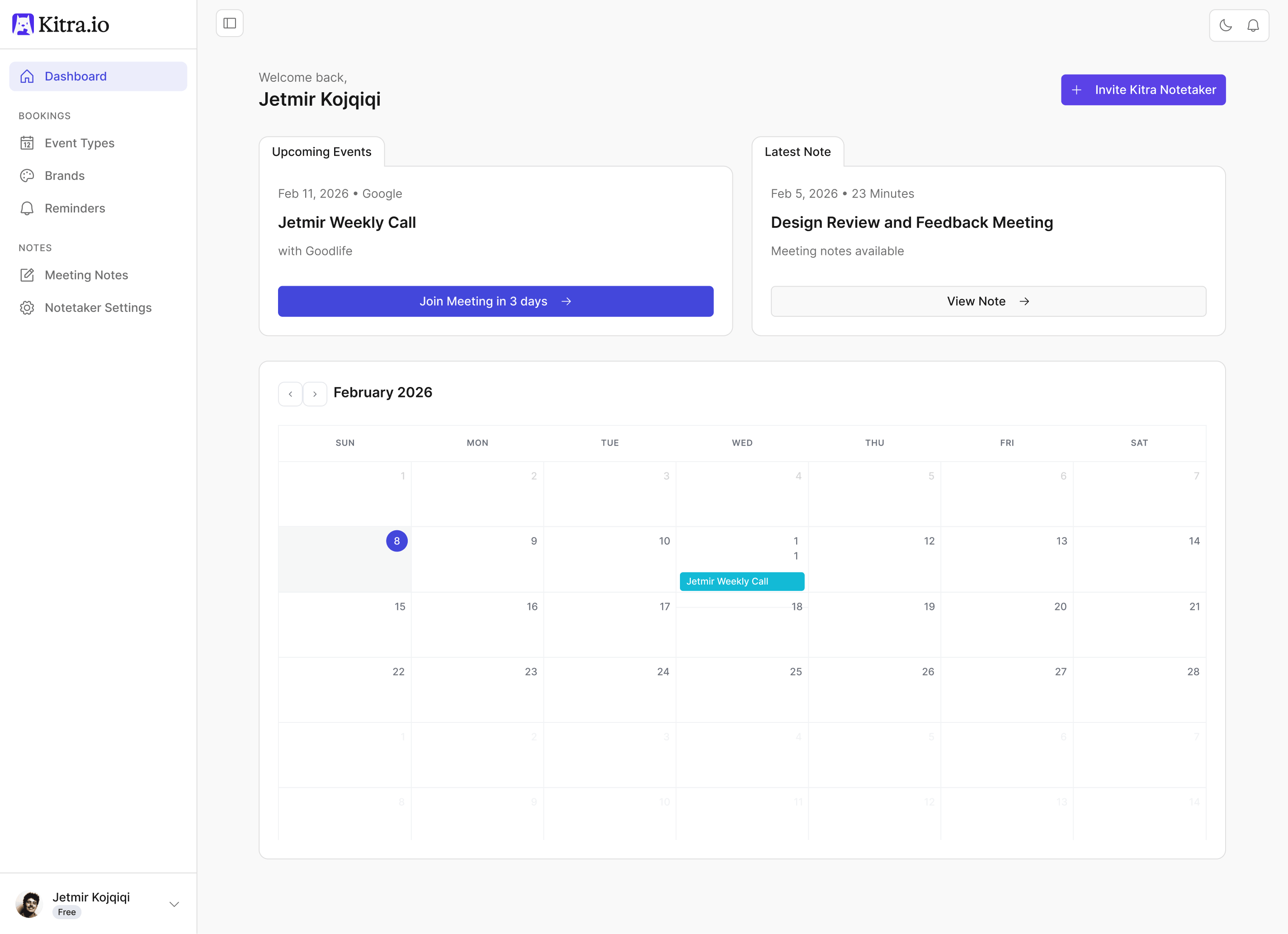

Notetaker Settings
The Notetaker Settings page is where you control how Kitra joins meetings and captures meeting notes.
You can access it by going to:
Notes → Notetaker Settings
This page allows you to define when Kitra joins meetings, which meetings it joins, and how summaries are shared after a meeting ends.
Calendar Connections
Calendar connections allow Kitra to automatically detect upcoming meetings.
You can connect:
Google Calendar
Outlook Calendar (including Teams)
Once connected, Kitra can detect meetings that contain Google Meet or Zoom links.
If syncing ever stops working, you can simply use Refresh Connection to reconnect your calendar.
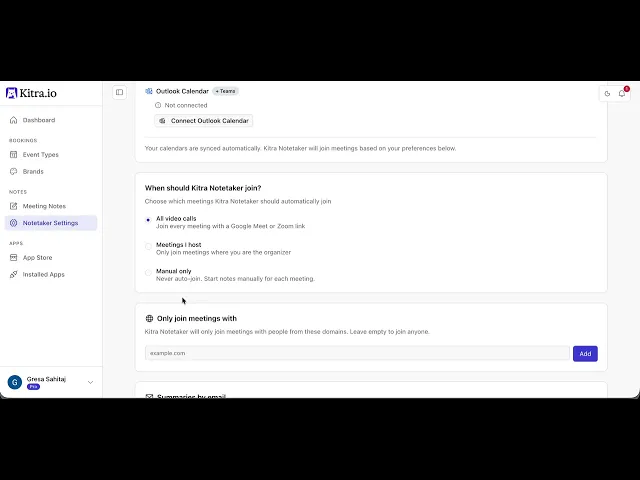
When Should Kitra Join?
This setting defines how Kitra joins your meetings.
You can choose between three options:
All Video Calls
Kitra automatically joins every meeting that includes a Google Meet or Zoom link.
Meetings I Host
Kitra only joins meetings where you are the organizer.
Manual Only
Automatic joining is disabled. You must manually invite Kitra by pasting a meeting link.
Domain Restrictions
If you enable All Video Calls, you can optionally restrict meetings by domain.
For example, adding:
yourcompany.com
means Kitra will only join meetings where participants belong to that domain.
Leaving this field empty allows Kitra to join meetings with anyone.
This is useful if you want to limit recordings to internal meetings only.
Email Summaries
You can also choose how meeting summaries are shared after meetings.
Options include:
Email Me the Summary
Only you receive the meeting notes.
Email Everyone the Notes
The meeting summary is sent to all meeting attendees.
You can enable one or both options depending on your workflow.
Save Your Settings
After making changes, click Save to apply your settings.
Notetaker Settings give you full control over how Kitra joins meetings, which meetings are captured, and how meeting summaries are shared.
In the next guide, we’ll explore the Kitra App Store.