

Meeting Notes
The Meeting Notes section is where all your meeting recordings, transcripts, and summaries are stored in Kitra.
You can access it by going to:
Notes → Meeting Notes
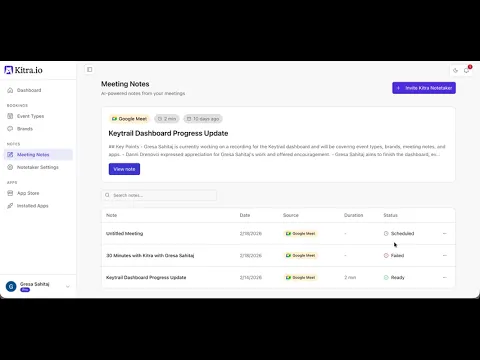
At the top of the page, you’ll see your latest meeting note, which highlights the most recently processed meeting.
Below that, you’ll find the full list of notes, including details such as:
Meeting name
Date
Meeting source (Google Meet, Zoom, etc.)
Duration
Status
Meeting Status
Each meeting note has a status showing its progress.
Scheduled
The meeting is planned but hasn’t happened yet.
Failed
The Notetaker couldn’t join or capture the meeting properly.
Ready
The meeting was successfully recorded and the notes are fully processed.
Viewing a Meeting Note
When you open a meeting note, you’ll see several sections.
Meeting Audio
Replay the meeting recording directly inside Kitra.
Meeting Details
See attendance, action items, meeting source, date, and duration.
Summary Tab
The Summary provides an overview of the meeting, including:
Key points
Decisions made
Discussion highlights
Next steps
This helps you quickly understand what happened without reading the entire transcript.
Transcript Tab
The Transcript contains the full word-for-word conversation from the meeting, including timestamps and speakers.
Ask Kitra
The Ask Kitra feature lets you ask questions about your meeting, such as:
What decisions were made?
Who has action items?
What deadlines were mentioned?
Kitra will respond based on the content of that specific meeting.
Sharing Notes
You can share meeting notes by:
Generating a shareable link
Sending notes via email
Inviting the Kitra Notetaker
From the main Meeting Notes page, you can click Invite Kitra Notetaker.
Simply paste your meeting link and Kitra will:
Join the meeting
Record the conversation
Generate transcripts and summaries automatically
Meeting Notes in Kitra keep your meetings organized, searchable, and easy to review, all in one place.
In the next guide, we’ll explore Notetaker Settings.